ClickFunnels Custom Domain: Setup, DNS, and URLs
One domain guide for connecting, verifying, assigning and changing ClickFunnels URLs without treating every DNS variation as a separate article.
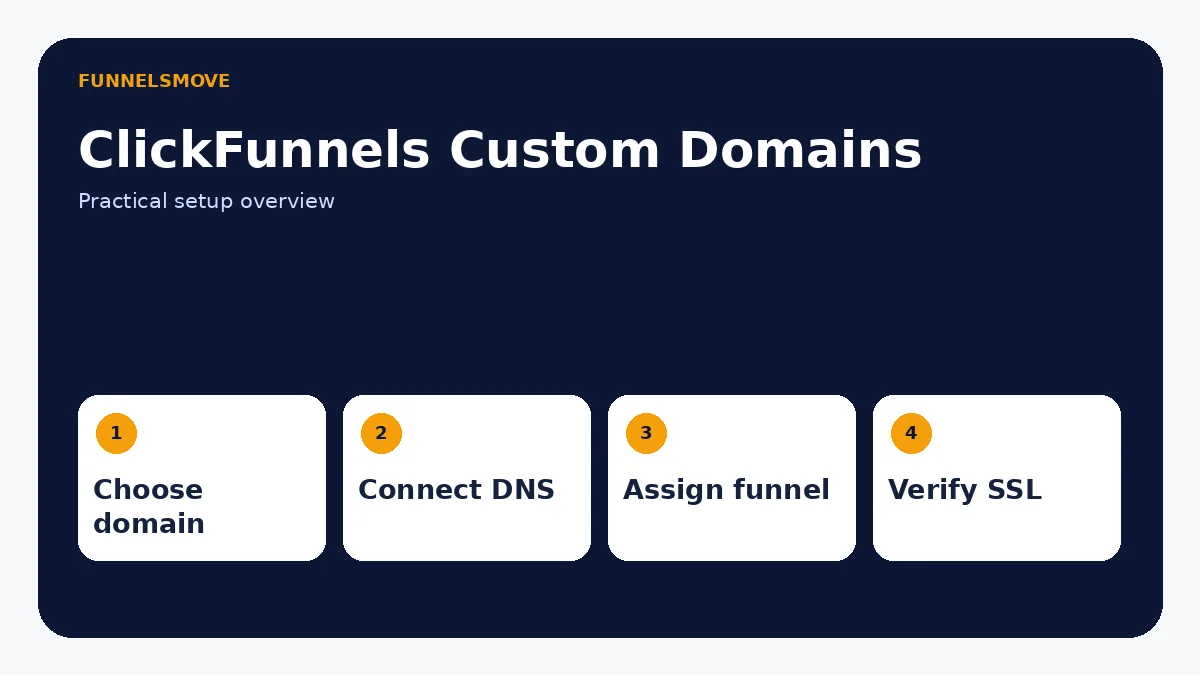
How do you get a domain name in ClickFunnels?
ClickFunnels supports custom domains so funnels and site content can use branded URLs rather than a default workspace address. Current documentation says each account/team can claim one free domain through ClickFunnels’ domain flow, and existing domains from external registrars can also be connected.
If you already own a website on the root domain, do not casually repoint that root to ClickFunnels. Current ClickFunnels guidance warns that connecting the root can interrupt the existing site; a subdomain such as go.example.com is often the safer choice.
Choose a root domain or subdomain first
Use the root domain when ClickFunnels should own the primary web experience. Use a subdomain when another platform—such as WordPress or Shopify—already owns the main site. This architecture decision matters more than the registrar you use.
For example, www.example.com might remain the main website while go.example.com hosts campaign funnels. The dedicated WordPress integration guide uses this pattern because it reduces the risk of disrupting an established content site.
How to connect an existing domain to ClickFunnels
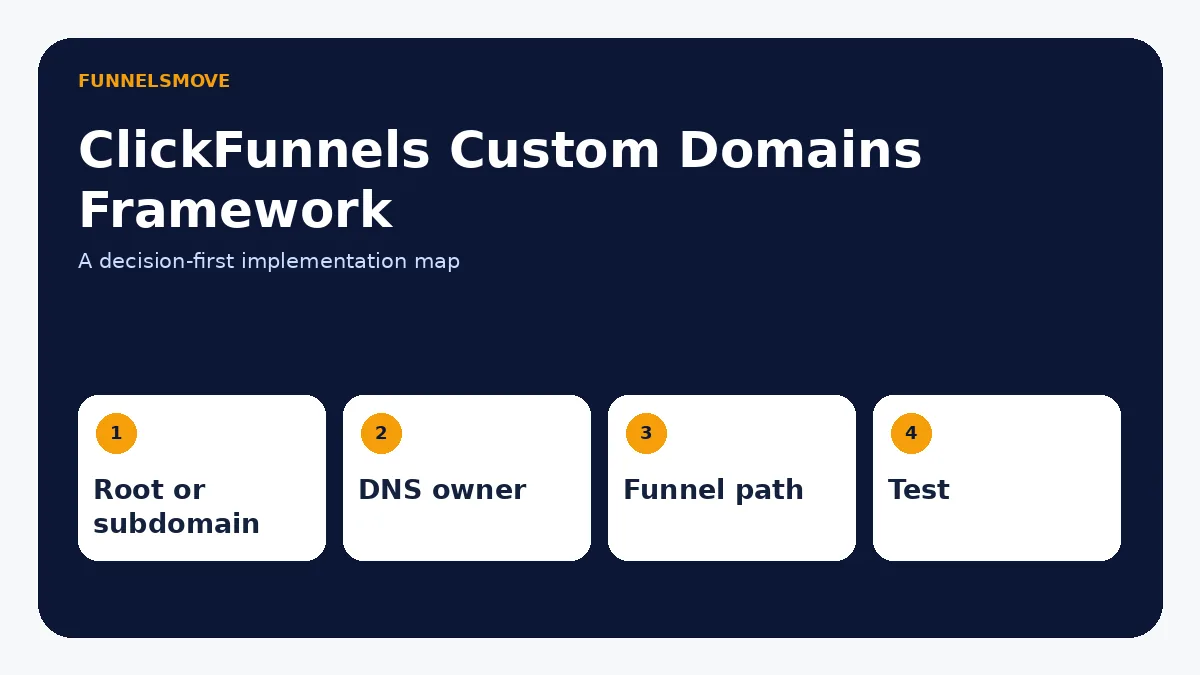
In the current ClickFunnels product, open Workspace Settings, go to Domains, choose Add Domain, then add an existing domain. ClickFunnels offers automated setup for supported DNS hosts and a manual setup path for other registrars.
The current automated-domain documentation says ClickFunnels uses the www form for a primary domain and does not provide an A record for root-domain integration. Subdomains do not require www. Follow the records shown inside your workspace rather than copying DNS values from an old tutorial.
DNS verification is not always immediate. ClickFunnels notes that record verification can sometimes take 24–48 hours. Wait for the domain to show as connected and SSL-secured before sending production traffic.
Assign the domain to a site or funnel
Connecting the DNS is only the first stage. After the domain is connected to the workspace, assign it to the Site & Blog app or to a funnel. For a funnel, current documentation directs you to choose the domain in Funnel Settings and set a Funnel Path URL such as /webinar.
A single slash (/) can make a funnel the default page for that domain. If multiple funnels share one domain, give each funnel a unique path and document which campaign owns each path.
How to verify the domain and SSL
ClickFunnels checks the DNS records required for the connection and issues SSL when the configuration is valid. Do not launch merely because the registrar shows the records were saved. Confirm the ClickFunnels domain status, then test both the expected hostname and funnel path over HTTPS.
If verification fails, first check for conflicting DNS records, proxy settings at the DNS provider, misspelled hostnames and whether the same CNAME is already pointing elsewhere. Avoid changing several settings at once; make one correction, allow DNS time to update, then retest.
How to change URLs, redirect, or remove a domain
Changing a funnel URL normally means changing the domain assignment, funnel path, or both. Before changing a live URL, inventory ads, email links, navigation and external links that still point to the old address. Where the platform and deployment architecture allow it, use a deliberate redirect rather than leaving established links broken.
Removing a domain from ClickFunnels should also be treated as a DNS and traffic-routing change. Confirm that no active funnel, site app or customer journey depends on it before disconnecting it. Domain transfer between registrars is a separate registrar-level process and should not be confused with assigning a domain to ClickFunnels.
What about GoDaddy, Cloudflare, Namecheap, and other registrars?
The principle is the same: ClickFunnels needs the correct DNS records at whichever provider controls the domain. Current ClickFunnels documentation offers automated setup for supported providers and manual setup for third-party registrars. Use provider-specific instructions only when they match the current ClickFunnels version.
If you are unsure who controls DNS, check the authoritative nameservers first. Editing records at the registrar does nothing when DNS is actually hosted somewhere else.
How many domains can you use?
Plan and workspace limits can change, so verify the current ClickFunnels plan documentation before making a purchase decision based on a specific domain count. This guide does not invent a domain limit where the supplied keyword data did not provide one.
Domain launch checklist
Before launch, confirm the intended hostname, DNS owner, required records, domain status in ClickFunnels, SSL, funnel path, canonical URL on public content, redirect behavior, mobile access and links from the rest of your stack. If the root domain hosts another site, test that it still works after the ClickFunnels connection.
DNS concepts that matter for ClickFunnels
You do not need to become a DNS engineer, but four terms matter. The registrar is where the domain is registered. The DNS host is where its records are managed. A CNAME points one hostname to another hostname. SSL encrypts browser traffic so the public page loads over HTTPS. When troubleshooting, identify which company controls each layer before changing settings.
A common source of confusion is editing DNS at the registrar when the authoritative nameservers point to a separate DNS provider such as Cloudflare. In that case, the changes must be made where the nameservers say DNS is hosted. Use the current ClickFunnels setup screen as the source of truth for the record it expects.
How to add and use a ClickFunnels subdomain
A subdomain is a hostname before the main domain, such as go.example.com. It is especially useful when www.example.com already hosts WordPress, Shopify, or another production site. Connect the subdomain in ClickFunnels, create the requested DNS record at the authoritative DNS provider, wait for verification, and then assign the connected hostname to the intended funnel.
Choose a subdomain that can survive future campaigns. Names such as go, offers, or learn are usually more flexible than a hostname tied to one temporary promotion. If several funnels use the same subdomain, differentiate them with unique paths.
Redirects, path changes, and URL cleanup
Changing a funnel path from /old-offer to /new-offer affects every link that points to the old path. Before changing it, search email sequences, ads, social profiles, QR codes, navigation, partner pages, and internal links. If the old URL has meaningful traffic or backlinks, plan a permanent redirect where the hosting setup supports it.
Removing “ClickFunnels” from a public URL normally means connecting a branded custom domain rather than trying to edit the platform’s default hostname. Once the branded domain is connected and assigned, use that URL in public-facing campaigns. Do not create duplicate indexable copies of the same page on both the branded domain and a default hostname.
Domain transfer versus domain connection
Connecting a domain to ClickFunnels changes where web traffic is routed; transferring a domain changes which registrar manages the registration. They are separate operations. If you want to move a domain away from one registrar, follow that registrar’s transfer process, including unlock and authorization-code requirements, without assuming ClickFunnels domain settings perform the registrar transfer.
Likewise, removing a domain from ClickFunnels does not necessarily cancel or transfer the registration. Before disconnecting, confirm where the domain is registered, where DNS is hosted, what records must remain for email, and where web traffic should point afterward.
Troubleshooting domain verification
If ClickFunnels cannot verify a domain, compare the expected hostname and record type character by character. Check for an old CNAME, conflicting A or AAAA records, a DNS proxy, or an accidental record on the root when the setup requires www. Then verify with the authoritative DNS host rather than relying on a screenshot from the registrar.
For email-enabled domains, avoid deleting MX, SPF, DKIM, or other mail-related records unless the provider specifically instructs you to do so. A web-domain change should not silently break business email. If a root domain already hosts a production website, use a subdomain unless you deliberately intend to replace that site.
Before changing a live domain
Make a short inventory before touching DNS: current website host, email provider, existing subdomains, important DNS records, analytics configuration, search-console verification method, and every funnel that already uses the domain. Take note of the current values so you can restore them if needed.
Domain changes can affect more than web pages. Deleting or overwriting MX, SPF, DKIM, DMARC, verification TXT records, or unrelated CNAMEs can interrupt email and connected services. Only change the records required for the ClickFunnels connection, and leave unrelated records alone unless you understand their purpose.
If the domain has organic-search traffic, changing paths or hostnames can also affect discovery. Preserve important URLs where possible, use redirects for intentional moves, keep canonical URLs consistent, and update XML sitemaps and internal links after a migration.
Common domain questions
Can one domain be used for multiple funnels?
Current ClickFunnels documentation supports assigning paths to funnels on a connected domain. Use unique paths and maintain a simple registry so campaigns do not collide.
Do I need an IP address for ClickFunnels?
The approved keyword set includes a question about a ClickFunnels IP address, but current setup documentation should determine the DNS record you use. Do not invent or hard-code an IP from an old tutorial when the current workspace supplies a hostname-based record or automated setup.
Can I keep my existing website?
Yes, if you use a subdomain or another domain for ClickFunnels. This is often the safest architecture when the root domain already serves WordPress, Shopify, or another production website.
Quick decision table
| Situation | Best starting point | Main risk |
|---|---|---|
| New ClickFunnels-first site | Primary custom domain | Misconfigured DNS |
| Existing website elsewhere | Branded subdomain | Accidentally repointing root domain |
| Multiple funnels | Unique paths on connected domain | Path collisions |
| Registrar change | Handle transfer at registrar | Confusing transfer with ClickFunnels assignment |
Evaluate ClickFunnels against your workflow
Check the current ClickFunnels offer and confirm the exact features you need before subscribing.
Explore ClickFunnels (opens in a new tab)Primary sources
- ClickFunnels: Connecting a Domain (Automated Setup) (opens in a new tab)
- ClickFunnels: Connecting a Domain (Manual Setup) (opens in a new tab)
- ClickFunnels: Connecting a Domain to Your Site and Funnel (opens in a new tab)
Product and interface facts were checked against these sources on September 8, 2026. Interfaces and third-party services can change.