ClickFunnels Products and Checkout: Complete Setup Guide
Create the product once, attach it to the right checkout, then test pricing, payments, bumps, quantities and fulfillment as one customer journey.
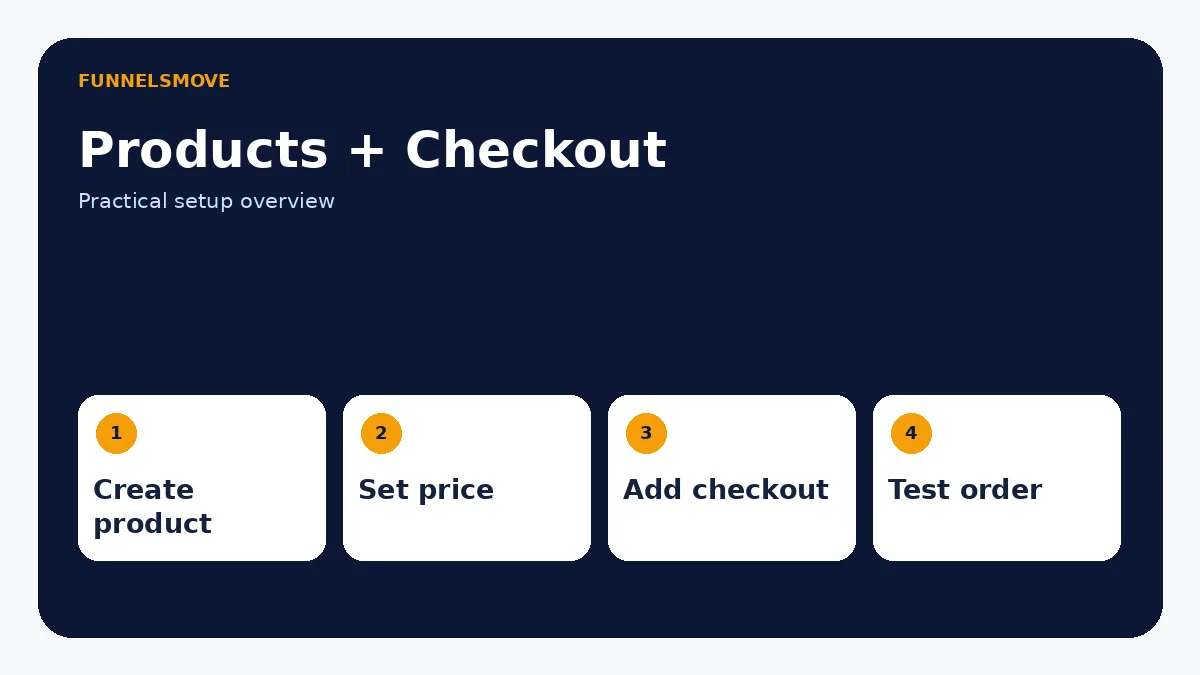
How do you add a product in ClickFunnels?
In the current ClickFunnels product, products are created centrally as Global Products and can then be reused across funnels and other selling channels. From Products → All Products, create a physical or digital product, add its details, choose a price type, and save it before attaching it to a checkout page.
This is an important version distinction. Older ClickFunnels Classic guides often create products from an Order Form step. Current ClickFunnels documentation describes a global-product system, so follow the workflow that matches the version in your account.
Create and price the product
Enter a clear product name and description, choose physical or digital, then configure pricing. Current ClickFunnels documentation includes one-time, subscription and payment-plan price types. Make sure the product promise, billing terms and delivery method are already decided before configuring the checkout.
For physical products, confirm shipping, inventory and fulfillment responsibilities. For digital products or services, define what event grants access or starts delivery. The checkout page should never be the first place those operating rules are decided.
Add a checkout or order form page
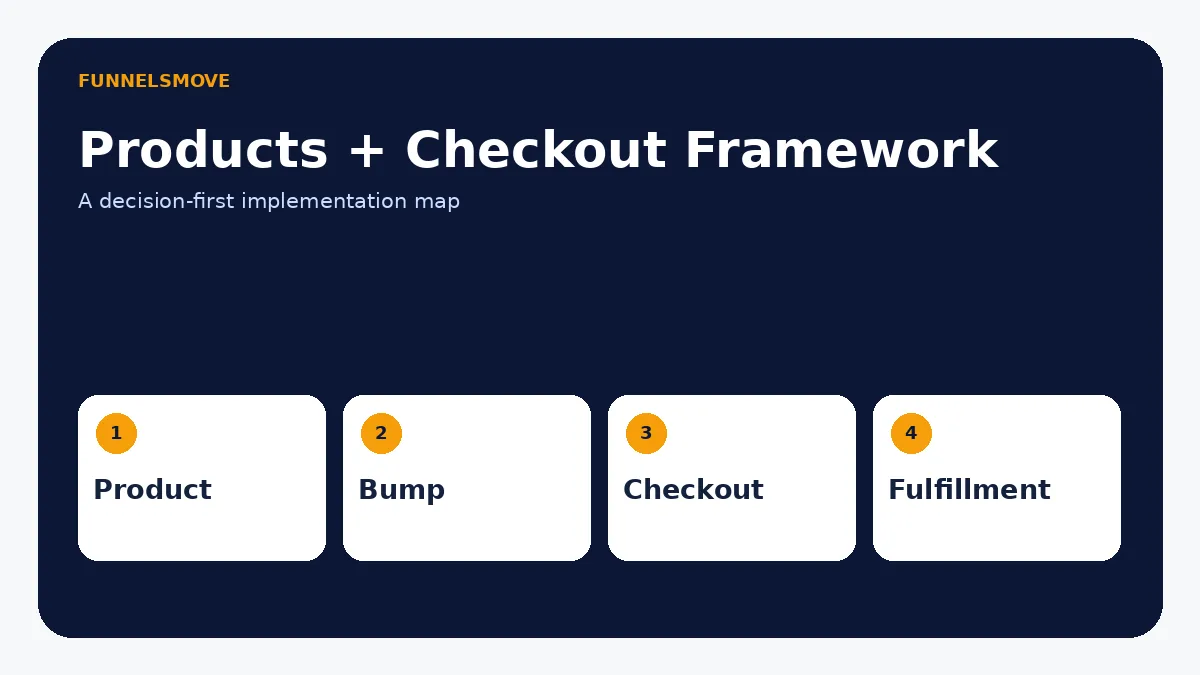
Current ClickFunnels documentation calls the funnel order form a Checkout page. Add a checkout page from a template or add the Checkout element to a funnel page, then attach one or more Global Products to that checkout.
After attaching the product, configure how it appears on that specific checkout. The current checkout system supports different product-selection behaviors, including a single-product choice and multiple products with quantities.
Payments must already be configured. If Stripe, PayPal or gateway setup is still unresolved, complete the ClickFunnels payments guide first.
How to add multiple products
Current ClickFunnels checkout settings can allow buyers to select multiple products and quantities. Use this only when the products belong in the same purchasing decision. A crowded checkout with unrelated choices creates friction and makes reporting harder.
For bundles, decide whether the customer is buying one bundled product or several independent line items. The operational difference can affect fulfillment, taxes, subscriptions and refunds.
What is an order bump?
An order bump is a complementary offer presented in the checkout flow. It should be easy to understand, modest in decision complexity and genuinely relevant to the primary purchase. The purpose is not to hide an extra charge; the buyer must make a clear choice.
Test the bump as part of the complete order, including what happens when the primary product is refundable, recurring or fulfilled separately.
Discount codes and coupons
Coupon and discount capabilities can vary by ClickFunnels version and product configuration. When the current workspace exposes discount or coupon controls, define the amount or percentage, eligibility, dates and redemption rules before launch. Do not publish a discount promise until the active checkout has been tested.
If a supplied keyword asks how to create or add a coupon code, this page owns that intent rather than creating several near-duplicate coupon articles. Interface-specific steps should be checked against the current workspace because checkout tooling changes more frequently than the underlying strategy.
Why might the Products tab or option be missing?
First confirm which ClickFunnels version and workspace area you are using. A Classic tutorial may tell you to look for Products inside an Order Form step, while current ClickFunnels uses central Products plus checkout attachment. Also confirm account permissions and that you are editing the correct funnel/page type.
If the interface still does not match current official documentation, use ClickFunnels support rather than forcing steps from an older video.
Shipping, fulfillment, and customer delivery
For physical goods, define shipping and fulfillment before traffic arrives. ClickFunnels can participate in the selling flow, but the actual warehouse, carrier, Shopify/Zendrop connection or fulfillment process still needs a system owner.
If Shopify is your fulfillment layer, see the ClickFunnels and Shopify integration guide. For digital products, test access delivery immediately after a successful payment.
Checkout test checklist
Test product name, price, quantity, bump behavior, coupon/discount if used, taxes, shipping, payment method, successful and failed transactions, confirmation page, email or access delivery, refunds and subscription behavior. Run the test on mobile as well as desktop.
Keep the checkout focused
A good checkout reduces uncertainty at the moment of purchase. Show the product being bought, the amount and billing terms, the information required to complete the order, and only the most relevant additional choice. Add complexity only when it improves the customer decision or operations.
Understand Global Products before building the order page
Current ClickFunnels separates the reusable product record from the funnel page that sells it. That is useful because one product can appear in more than one funnel or selling channel without recreating its core identity each time. Treat the Global Product as the business object and the Checkout page as the context in which a buyer purchases it.
Before attaching a product, review its name, description, physical/digital type, price type, fulfillment assumptions, and any subscription terms. A checkout variation should not silently change the underlying commercial promise.
One-step versus two-step order forms
Some supporting keywords ask specifically about a two-step order form. The right structure depends on what information you need and how much friction the purchase can tolerate. A staged checkout can separate contact details from payment details, while a compact checkout can reduce steps. Use the current ClickFunnels Checkout components available in your workspace rather than assuming a Classic template label still applies.
Whichever layout you choose, keep required fields to what the transaction and fulfillment genuinely need. Test keyboard navigation, mobile input, validation messages, and what happens if a visitor leaves after entering contact information but before paying.
Designing a multiple-product checkout
Current ClickFunnels documentation supports checkout settings where buyers can select multiple products and quantities. That does not mean every catalog belongs on one order form. Group products only when the buyer can reasonably compare them in one decision—for example, sizes, package tiers, or closely related add-ons.
If products have different tax, shipping, subscription, or fulfillment rules, verify those combinations carefully. A multiple-product checkout should calculate the final order correctly and make the buyer’s selections unmistakable before payment.
Order bump design and ethics
An effective bump is a small, complementary purchase that makes sense at the moment of checkout. Explain what it is, how much it costs, and whether it is one-time or recurring. Do not use preselected or confusing language that obscures consent.
Operationally, check whether the bump is fulfilled with the main product or separately. Test refunds and partial refunds when only one line item is returned. If the bump is a subscription, verify that its recurring terms remain clear even when the primary product is one-time.
Coupons and discount rules
Before creating a promotion, decide whether the discount applies to one product, a set of products, the first billing period, or the full subscription. Define expiration and redemption rules and make sure the checkout displays the resulting price accurately. A coupon code should never be used to create fake urgency or imply a discount that is permanently available.
Because discount interfaces can change, confirm the current ClickFunnels product documentation or workspace UI before following an older tutorial. Keep all coupon-related keyword variants on this page unless a future content audit finds a genuinely distinct search intent.
Physical versus digital product workflows
Physical goods require address collection, shipping rules, inventory and fulfillment ownership. Digital goods require a reliable access or delivery event after successful payment. Services may need booking, onboarding, or a handoff to a CRM. The checkout should collect only the data necessary for that fulfillment model.
For physical products fulfilled through Shopify, use the ClickFunnels–Shopify integration guide to decide which platform owns the order and fulfillment handoff. For digital delivery, test access with a fresh customer account rather than an administrator account.
Order confirmation and post-purchase experience
A successful payment should lead somewhere intentional. The confirmation page should restate the purchase, set expectations for delivery, and tell the buyer what to do next. If email contains access instructions, say when to expect it and provide a support route that actually exists.
For upsells or one-time offers, confirm that the sequence is compatible with the payment gateway and product types in use. Older Classic documentation has gateway-specific limitations, so current-product users should verify the present support docs instead of assuming every historical OTO behavior still applies.
Troubleshooting products and checkout
If the product does not appear on the checkout, confirm it exists as a Global Product and is attached to that specific Checkout page. If the Products menu seems missing, verify the ClickFunnels version and workspace permissions. If price or billing terms look wrong, inspect the underlying product price before editing page copy.
If the checkout loads but cannot transact, move to the payments troubleshooting guide and verify gateway status, currency, and payment methods. If payment succeeds but delivery fails, troubleshoot the post-purchase workflow separately from checkout.
Where this fits in your ClickFunnels setup
Products and checkout are one part of a broader implementation. Start with the ClickFunnels beginner setup guide if you still need to map the funnel, connect domains, configure email, or decide which integrations own each step.
Model the product before building the funnel
Define the commercial object first: what the customer receives, whether it is physical or digital, the price, currency, billing frequency, fulfillment method, refund policy, and what happens after payment. Then configure ClickFunnels to match that model. This order prevents a common mistake—letting the checkout interface dictate business rules that were never decided.
For a subscription or payment plan, document the schedule in plain language. For physical goods, decide shipping regions, inventory ownership, and fulfillment handoff. For services, decide whether payment immediately confirms the service or whether another qualification or scheduling step follows.
What the checkout page should communicate
The buyer should be able to answer four questions without hunting: what am I buying, how much will I pay now, will I be charged again, and what happens next? Keep product names consistent with the sales page, show meaningful billing terms, and avoid introducing new claims at checkout.
When multiple products or bumps are available, make selection states obvious. The final order total should be understandable before payment. If shipping, taxes, or recurring charges can change the amount, disclose them at the appropriate point in the transaction.
Map fulfillment and access after checkout
A successful charge is not the end of the customer journey. Physical products need an order handed to the correct fulfillment system. Digital products need access granted. Courses may need enrollment. Services may need scheduling or onboarding. Build and test the downstream action for every product type sold on the page.
If multiple products can be selected together, verify that each one triggers the correct delivery rule and that refunds do not accidentally remove access to unrelated purchases. If an order bump has separate fulfillment, test it both with and without the primary product refund scenario.
What to measure after launch
Track enough to diagnose the buying path without inventing benchmark targets. Useful measures include checkout visits, completed purchases, payment failures, order-bump take rate when used, refunds, subscription cancellations, and fulfillment exceptions. Compare changes against your own historical baseline rather than assuming a generic conversion rate applies to every traffic source and offer.
When performance drops, isolate the stage. A traffic-quality problem, unclear offer, checkout usability problem, processor decline, and fulfillment failure require different fixes. Do not redesign the checkout because a campaign is attracting the wrong audience.
Final pre-publish product check
Before publishing, compare the product record, sales-page promise, checkout copy, and post-purchase delivery side by side. The product name, price, billing schedule, quantity, and fulfillment expectations should agree across all four. Test with the same device types and payment methods customers are likely to use, then verify the resulting order and delivery record rather than stopping at the confirmation screen.
This final reconciliation is especially important when a funnel has been duplicated from an older campaign, because copied pages can retain product, automation, or tracking settings that no longer match the new offer.
Assign a checkout owner
Give one team member or documented process responsibility for product, price, checkout, and fulfillment changes so copied funnels do not drift out of sync.
Quick decision table
| Task | Current approach | Watch for |
|---|---|---|
| Create product | Products → All Products | Classic tutorials use different flow |
| Sell in funnel | Attach Global Product to Checkout page | Gateway must be configured |
| Offer multiple items | Checkout quantity/product settings | Too many choices |
| Increase order value | Relevant order bump | Unclear or misleading add-ons |
Related: ThriveCart vs ClickFunnels for checkout.
Related: ClickFunnels ecommerce stores and carts.
Evaluate ClickFunnels against your workflow
Check the current ClickFunnels offer and confirm the exact features you need before subscribing.
Explore ClickFunnels (opens in a new tab)Primary sources
- ClickFunnels: Adding a Checkout Page (opens in a new tab)
- ClickFunnels: Getting Started With Payments (opens in a new tab)
- ClickFunnels: Getting Started with ClickFunnels (opens in a new tab)
Product and interface facts were checked against these sources on September 8, 2026. Interfaces and third-party services can change.